How to Set Up a Wedding QR Code in Under 5 Minutes
Setting up a QR code to collect wedding photos takes under 5 minutes on Snapeen — create an event, download the print-ready PNG, and send it to your printer. Here's the exact step-by-step process, what to print, where to place it, and a day-of checklist.

Quick Answer
Setting up a wedding QR code on Snapeen takes under 5 minutes: create account, create event, choose a plan, download the PNG, send to print. Place it at every table, the bar, the entrance, and inside programs. Test it yourself before the wedding day.
Can you really set up a wedding QR code in under 5 minutes?
Yes. From account creation to a print-ready QR code file sitting in your downloads folder, the whole process takes under five minutes on Snapeen. The only step that takes longer is physical printing — and that's on the print shop's schedule, not yours.
Here is the exact process.
Step 1: Create a free Snapeen account (60 seconds)
Go to snapeen.com and click "Get Started." Enter your email and a password. No credit card required for the free account. The free plan is sufficient for testing the full setup before you decide which paid plan fits your wedding.
Step 2: Create your wedding event (60 seconds)
Click "New Event." Fill in three fields:
- Event name — e.g., "Sophie & James's Wedding" or simply "Our Wedding"
- Event date — your wedding date
- Event type — select Wedding
Click "Create Event." Snapeen instantly generates a unique QR code and shareable upload link tied to your event. Both are live immediately — you can test the upload flow right now by scanning the code yourself.
Step 3: Choose your plan (2 minutes)
Before downloading anything, select the right plan for your wedding:
| Plan | Price | Photo limit | Right for |
|---|---|---|---|
| Free | $0 | 50 photos | Testing only |
| One-Time | $24.99 | 200 photos | Weddings under 80 guests |
| Premium | $49.99 | Unlimited | 100+ guests, live slideshow |
The free plan caps at 50 photos. A 100-person wedding fills that within the first hour of the reception. For most weddings, One-Time at $24.99 is the right call. For 100+ guests or if you want the live slideshow, go Premium.
To upgrade: click "Upgrade" from your dashboard, select your plan, and complete checkout. Under two minutes.
Step 4: Download the QR code (30 seconds)
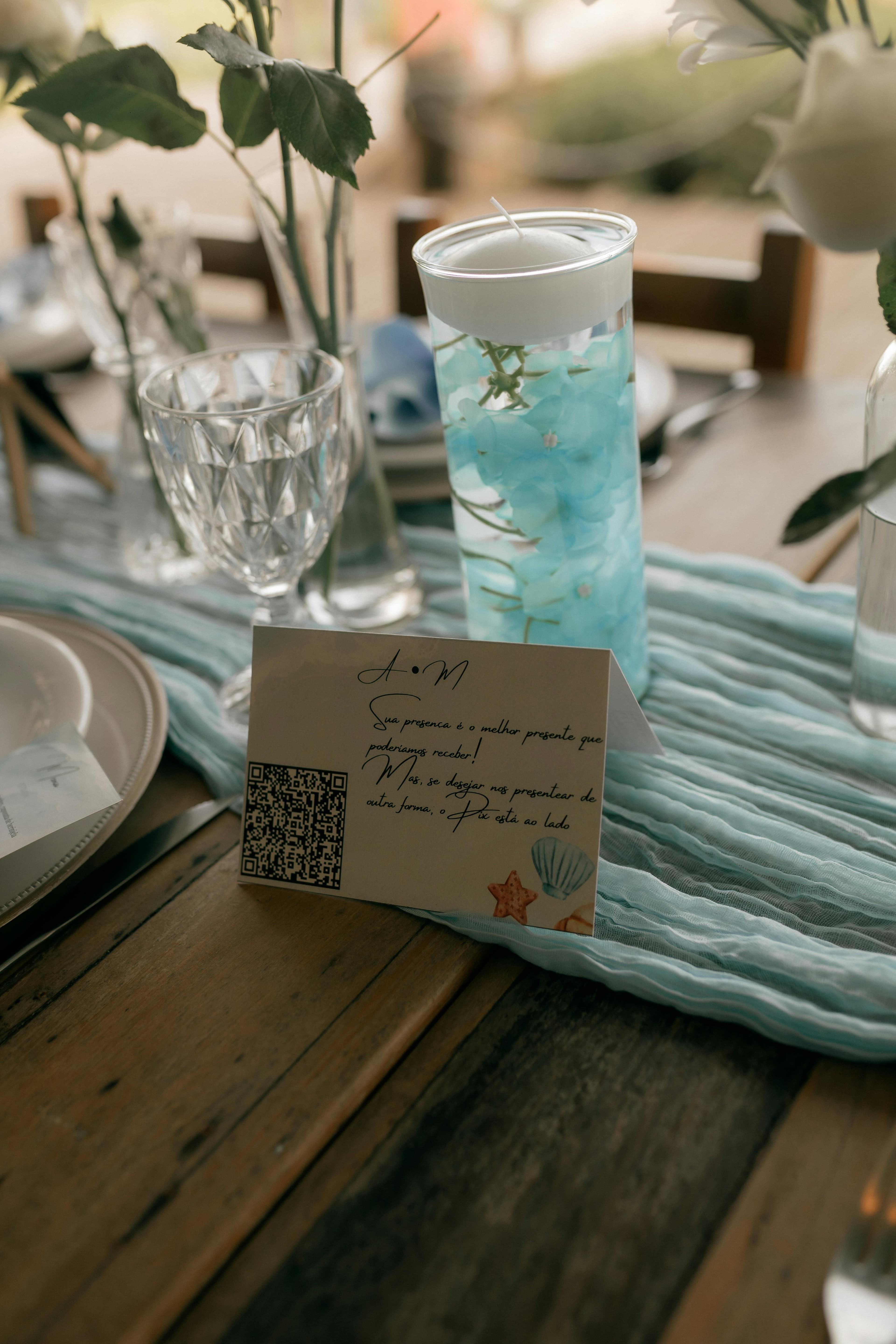
Click "Download QR Code" from your event dashboard. You'll receive a high-resolution PNG — print-ready at any size. Drop it directly into a print order, or open it in Canva, Word, or any design tool to place it on custom table cards or signage.
Minimum print size for reliable scanning: 2×2 inches. The ideal size for table cards is 3×3 inches. Never go below 1.5×1.5 inches — phones struggle to lock onto smaller codes in dim venue lighting.
Step 5: Send to print
Three options depending on your timeline:
Local print shop (same day or next day) Send the PNG to FedEx Office, Staples, or any local copy shop. Ask for business card-sized prints (3.5×2 inches) or 4×4 cards. Cost: $15–40 for 20–30 cards depending on paper stock.
Online printing service (3–7 days) Vistaprint, Moo, and Canva Print all let you place the QR code on a custom card design with shipping to your door. Order at least two weeks before the wedding.
Print at home (immediate) A home inkjet on 80 lb cardstock works fine for table cards. Print at the highest quality setting. Avoid glossy paper — it reflects venue lighting and can make the code harder to scan.
What to print: minimum placement list
Couples who place the QR code at four or more locations collect 2.1× more photos than those with a single placement. At minimum, print for:
- Table cards — one per guest table. This is the single highest-volume placement. Guests sit down, see the card, and scan immediately.
- Bar sign — a 5×7 card in a small stand at the bar. Guests spend more time here than anywhere else.
- Welcome table or entrance sign — catches guests on arrival before the event starts.
- Ceremony programs — QR code printed at the bottom with a short note: "Scan after the ceremony to share your photos."
Those four cover the majority of upload opportunities. Optional additions: bathroom mirrors, near the wedding cake, at the DJ's equipment, and on an exit sign.
Brief your DJ or MC before the wedding
The verbal announcement during the reception adds 30–40% more uploads. Write this out and hand it to your DJ or MC at the rehearsal dinner:
"Before we kick off the evening — [couple's names] would love to see your photos. There's a card on every table with a QR code. Point your phone camera at it and tap the link. You'll be uploading in about 15 seconds, and they can see your photos arrive in real time."
Ask for the announcement twice: once at the start of dinner and once after the first dance.
Day-of checklist
Run through this on the morning of your wedding:
- QR code cards are at the venue (table cards, bar sign, programs)
- You've scanned the code yourself and confirmed the upload works
- Snapeen event is on the correct date with the right plan active
- DJ/MC has the announcement script
- Live slideshow laptop is charged and HDMI cable is packed (Premium only)
- Your phone is charged and Snapeen dashboard is bookmarked
- Day-after follow-up message is drafted and ready to send
Testing before the wedding
Scan the QR code yourself on your own phone as soon as you print it. You'll see exactly what your guests see — the upload page in Safari or Chrome, taking about 10 seconds from scan to upload confirmation. If it works on your phone, it works for everyone. Test on both iPhone and Android if possible, since the camera apps render the notification banner slightly differently.
After the wedding: downloading everything
Log in to your Snapeen dashboard, open your event, and click "Download All." Your full gallery exports as a ZIP file — 800 photos typically takes 3–5 minutes. Back up to at least two places (cloud + local drive) before the storage window closes. Set a calendar reminder for three days after you return from honeymoon and download that day.
See also: 10 creative ways to display your wedding QR code · How to collect wedding photos from guests
Frequently Asked Questions
Under 5 minutes on Snapeen — create an account (60 sec), create your event (60 sec), choose a plan (2 min), download the print-ready PNG (30 sec). Printing is handled separately by your print shop.
Minimum 2×2 inches for reliable scanning. The ideal size for table cards is 3×3 inches. Never go below 1.5×1.5 inches — phones can struggle to lock onto smaller codes in dim venue lighting.
At minimum: one card per guest table, one bar sign, one welcome table card, and one per ceremony program. Couples who use four or more placement locations collect 2.1× more photos than those with a single placement.
The One-Time plan ($24.99, 200 photos, 30-day storage) covers most weddings under 80 guests. Premium ($49.99, unlimited photos, live slideshow) is recommended for 100+ guests. The free plan caps at 50 photos and will fill within the first hour of a full reception.
Scan it yourself immediately after printing. You'll see the exact upload experience your guests will have — it takes about 10 seconds from scan to upload confirmation. Test on both iPhone and Android if possible.
Topics

Written by
Sarah Johnson
Helping couples and event planners capture every precious moment with modern QR code photo sharing technology.
Ready to collect your event photos?
Set up your QR code in 2 minutes. Guests scan and upload instantly — no app needed.
Continue Reading
Related Articles
How to Collect Wedding Photos from Guests (Complete 2026 Guide)
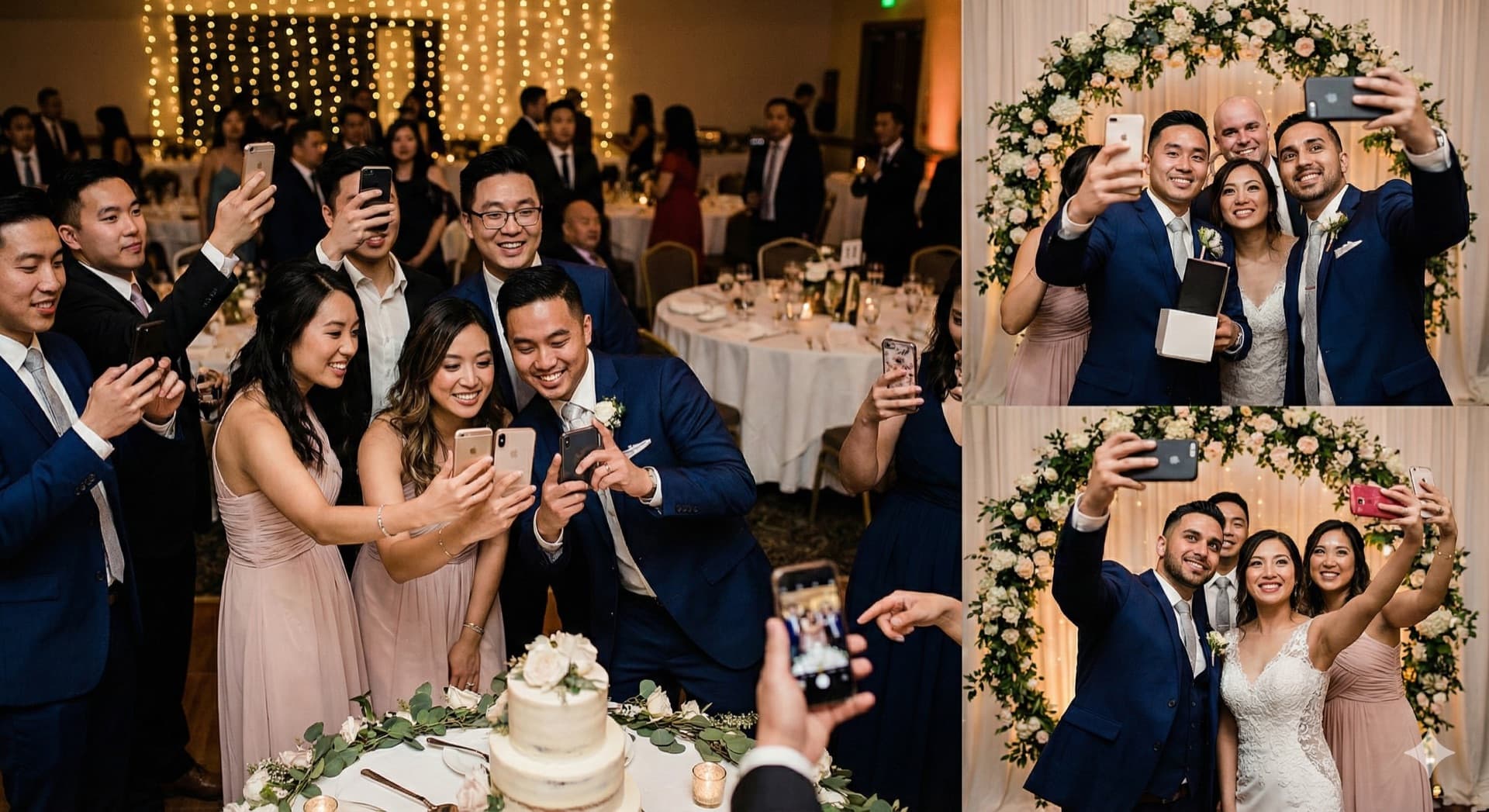
The easiest way to collect wedding photos from guests is a QR code — no app needed, 500–1,200 photos in 24 hours. Here's exactly how to set it up, where to display it, and what to do with everything afterward.

10 Ways Couples Lose Wedding Photos (And How to Prevent It)
Don't let precious memories disappear! Learn the most common ways couples lose wedding photos and simple solutions to protect them.

10 Creative Ways to Display a QR Code at Your Wedding (More Uploads)
Where you display your wedding QR code determines how many guest photos you collect. Data from 1,000+ weddings shows which placements drive the most uploads — table cards, bar areas, live slideshows, and 7 more.