Live Slideshow at Weddings: How to Set One Up (Complete Guide)
A live wedding slideshow shows guest photos on a screen in real time as they're uploaded — and it's the single most effective way to double your photo count. Here's exactly how to set one up.

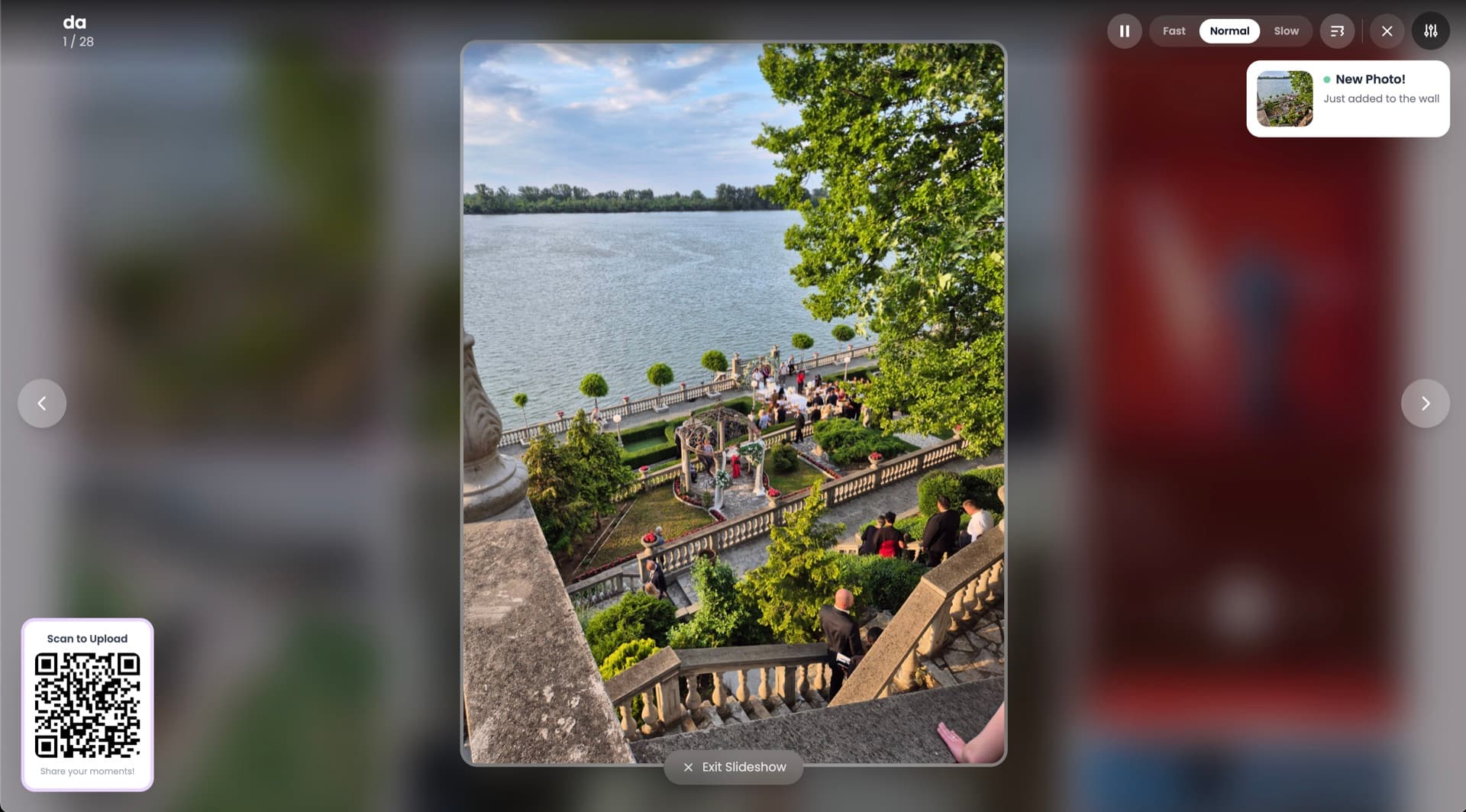
Quick Answer
A live wedding slideshow shows guest photos on screen in real time as they're uploaded — and weddings that run one collect 2.3× more photos on average. You need a screen (venue TV or a rented 65" for ~$150), a device connected via HDMI or Chromecast, and Snapeen's live display URL open in fullscreen. Test everything the day before, start at cocktail hour (not the reception), and have your DJ use this line: "you might see your photo up there in about 10 seconds" — that single phrase turns uploading into a game.
What is a live slideshow at a wedding?
A live wedding slideshow is a real-time display that shows guest photos on a screen as they're uploaded — no delay, no refresh needed. Guests scan a QR code, upload a photo from their camera roll or take a new one, and within seconds it appears on the screen for the whole room to see.
It sounds like a small feature. In practice, it creates one of the most powerful feedback loops in event photography: guests see their own photo appear on a big screen, they show their friends, their friends take a photo to see if theirs will show up too, and the uploads keep coming. Data from Snapeen events shows that weddings running a live slideshow during the reception collect an average of 2.3× more photos than comparable weddings without one — not because guests were asked to upload more, but because seeing photos on a screen turns uploading into a social activity rather than a task.
What you need to run a live slideshow
The setup has three components: a screen, an internet connection, and a photo-sharing platform with a live display mode. Snapeen includes a live slideshow view in every event — it's a browser-based URL you open on any device connected to your screen.
The screen: Most venues have at least one large TV or projector screen. If yours does, ask the venue coordinator whether you can use it for a custom display — most say yes. If your venue doesn't have a screen, screen rental companies charge $100–250 for a 65" TV on a stand for a weekend event, including delivery and setup. A projector works too, but requires a darkened area to be visible, which limits where you can place it.
The connection: Your screen needs to connect to a device showing the Snapeen live view — a laptop, tablet, or phone. A direct HDMI cable is the most reliable method. A Chromecast or Apple TV works if the venue's wifi is stable. Avoid relying on Miracast or screen mirroring over cellular — they lag and drop at the worst moments.
The platform: Snapeen's live display mode refreshes automatically as new photos come in. Open the live view URL on your connected device, put it in fullscreen, and it handles the rest — new photos appear as they're uploaded, cycling through the gallery with smooth transitions.
Step-by-step setup
Setting up takes about 15 minutes the day before your wedding and 5 minutes on the day.
Day before:
- Log in to Snapeen and open your event.
- Navigate to the live slideshow settings. Copy the live display URL — this is what you'll open on the device connected to your screen.
- Test the full flow: open the live URL in one browser tab, open your event's upload page in another (or scan the QR code yourself), and upload a test photo. It should appear in the live view within a few seconds.
- Confirm your screen connection method (HDMI cable, Chromecast) and test it at home if possible.
Day of:
- Arrive at the venue before guests. Connect your device to the screen via HDMI or Chromecast.
- Open the live display URL in a browser and go fullscreen.
- Adjust screen brightness and placement so it's visible from the main seating area and the bar.
- Brief your DJ or MC: ask them to point to the screen during their announcement.
That's it. No ongoing management needed — the slideshow runs itself for the rest of the night.
When to run the live slideshow
Cocktail hour is the highest-value window for the live slideshow. Guests are relaxed, mingling, phones in hand, and the reception hasn't started yet. A 90-minute cocktail hour with a live slideshow running typically generates 200–400 uploads before the first course.
Reception keeps the momentum going. The slideshow is most effective during periods of natural downtime — between courses, during dinner, while guests are waiting for the cake cut. The dance floor period generates fewer uploads (people are dancing), but turns the screen into ambient entertainment rather than a prompt.
Running the slideshow throughout both — cocktail hour and reception — consistently produces the highest photo counts. The feedback loop keeps refreshing: a guest who uploaded during cocktail hour sees a new photo appear from dinner and uploads another.
If you only have screen access during one part of the event, prioritize cocktail hour.
Best screen placement
Placement determines how many people see the slideshow and, in turn, how many upload. The three best positions:
Bar area. Guests congregate here more than anywhere else, and they're stationary — waiting for a drink, talking to someone, checking their phone. A screen visible from the bar creates constant passive engagement.
Main seating area. A screen facing the dinner tables means every guest at every table can see it without turning around. If your venue has a permanent screen at the front of the room (near the stage or DJ booth), this is already your best option.
Near the entrance or welcome table. Guests see it on arrival and know immediately that photos are being collected — it primes them to upload before the main event starts.
Avoid placing the screen in a corner that requires guests to walk over to see it, behind a pillar, or facing direct sunlight from windows.
Getting guests to upload: the QR code strategy
The live slideshow is the incentive. The QR code is the mechanism. Without easy access to the upload link, the feedback loop breaks.
At minimum, place QR codes on every table card — one per table, at least 3×3 inches. Add a sign near the bar. Brief your DJ or MC to make an announcement during cocktail hour and again at the start of dinner:
"[Couple's names] have a live photo wall running all night — that's the screen up here. Every table has a QR code on the card in front of you. Scan it, upload a photo, and you might see it up there in about 10 seconds."
That last line — "you might see it up there in about 10 seconds" — is what converts casual guests into active uploaders. It reframes the QR code from an obligation into a game.
Moderation
Snapeen lets you moderate photos before they appear on the live display. For most weddings, moderation isn't necessary — guests upload appropriate photos. But if you're concerned (open bar, mixed family-friend crowd), enabling moderation means you approve each photo before it hits the screen. The trade-off is a delay between upload and display, which dampens the immediate feedback loop slightly.
A practical middle-ground: turn moderation off during cocktail hour (when the crowd is more sober and the photos are generally better), then enable it after 9 p.m. if you want extra control during the later part of the reception.
Common mistakes to avoid
Not testing the setup before the day. The live display URL, the screen connection, and the QR code upload flow should all be tested at least once before your wedding day. A setup issue on the night — a laptop that won't connect to the venue's screen, a Chromecast that needs updating — is stressful and entirely fixable in advance.
Poor venue wifi. If your venue has unreliable wifi, uploads will be slow and the live display will lag. Ask the venue coordinator for the wifi password in advance and test upload speeds on the day. As a backup, note that Snapeen uploads work over cellular — guests on 4G/5G will upload fine even if venue wifi is weak.
A screen nobody can see. A 40" TV tucked in a corner of a 300-person venue doesn't create the feedback loop — not enough people see the photos appear. If your venue screen is small or poorly positioned, a rented screen placed centrally is worth the $150.
No verbal announcement. The live slideshow is a feature guests can't discover on their own if they're not looking for the screen. The DJ or MC announcement — especially the line about seeing your photo appear in seconds — is the trigger that converts curiosity into action.
Waiting until the reception to start. Starting the slideshow at cocktail hour means guests arrive at dinner with 200+ photos already cycling on the screen. That visual proof of participation is far more persuasive than an empty slideshow asking guests to be the first to upload.
FAQ
See also: How to Collect Wedding Photos from Guests · 847 Wedding Photos from 112 Guests: A Real Case Study · QR Code for Wedding Photos: The Complete 2026 Guide · 10 Creative Ways to Display a Wedding QR Code
Frequently Asked Questions
A live wedding slideshow is a real-time display that shows guest photos on a screen as they're uploaded via QR code. When a guest scans the code, uploads a photo from their camera roll, and it appears on screen within seconds for the whole room to see — creating a social feedback loop that significantly increases total uploads compared to weddings without a live display.
No special equipment is needed beyond a screen (your venue's TV, a rented screen, or a projector), a device to connect to it (laptop, tablet, or phone), and a platform like Snapeen that includes a live display mode. An HDMI cable is the most reliable connection method. Total setup time is about 15 minutes the day before and 5 minutes on the day.
Weddings running a live slideshow collect an average of 2.3× more photos than comparable weddings without one. A typical 100-guest wedding with a live slideshow running from cocktail hour through dinner collects 700–1,100 photos within 24 hours. The increase comes from the social feedback loop — guests see their photo appear on screen and immediately show others, who then upload their own.
Start at cocktail hour, not the reception. Cocktail hour guests are relaxed, phones in hand, and there's no program competing for attention — it's the highest-value window for uploads. Starting early means guests arrive at dinner with hundreds of photos already cycling on the screen, which creates social proof and motivates more participation.
For most weddings, moderation isn't necessary — guests upload appropriate photos. If you want extra control, Snapeen lets you approve each photo before it appears on screen. A practical middle-ground: run without moderation during cocktail hour for the full immediate feedback effect, then enable moderation later in the evening if needed.
Topics

Written by
Alex Morgan
Helping couples and event planners capture every precious moment with modern QR code photo sharing technology.
Ready to collect your event photos?
Set up your QR code in 2 minutes. Guests scan and upload instantly — no app needed.
Continue Reading
Related Articles
How to Collect Wedding Photos from Guests (Complete 2026 Guide)
The easiest way to collect wedding photos from guests is a QR code — no app needed, 500–1,200 photos in 24 hours. Here's exactly how to set it up, where to display it, and what to do with everything afterward.

10 Ways Couples Lose Wedding Photos (And How to Prevent It)
Don't let precious memories disappear! Learn the most common ways couples lose wedding photos and simple solutions to protect them.

10 Creative Ways to Display a QR Code at Your Wedding (More Uploads)
Where you display your wedding QR code determines how many guest photos you collect. Data from 1,000+ weddings shows which placements drive the most uploads — table cards, bar areas, live slideshows, and 7 more.