QR Code for Wedding Photos: The Complete 2026 Guide
A wedding photo QR code lets guests upload photos instantly in their browser — no app needed. Couples collect an average of 850 photos. Here's exactly how it works, how the top apps compare, where to place your code, and a complete setup checklist.

Quick Answer
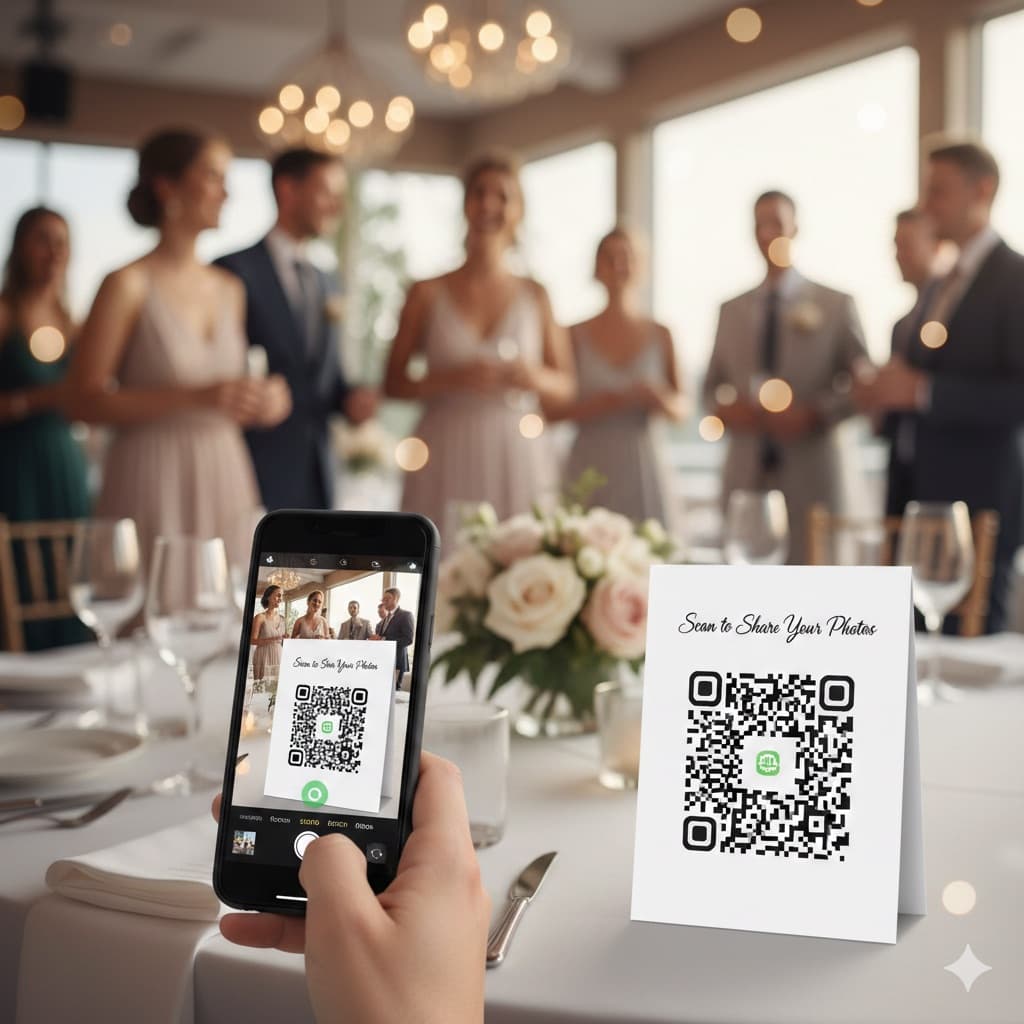
A wedding photo QR code lets guests upload photos directly from their phone browser — no app download required. Scan the code, upload in 30 seconds, done. Couples using Snapeen collect an average of 850 photos per wedding. Setup takes under 10 minutes and the basic plan is free.
What is a QR code for wedding photos?
A wedding photo QR code is a scannable link that takes guests directly to a private photo upload page for your event. When a guest points their phone camera at the code, a tap notification appears on screen — one tap opens the upload page in the browser. They select photos from their camera roll or take new ones, tap upload, and the photos appear instantly in your gallery. No app download. No account creation. No login. The entire guest experience from scan to upload confirmation takes under 30 seconds.
On the couple's side, every photo lands in a single organized gallery in real time. You can watch them arrive on your phone through the host dashboard during the reception, share the gallery link with family and your photographer the same night, and download the complete collection as a single ZIP file whenever you're ready. The QR code is unique to your wedding — it never changes during your plan's storage window, so you can print it weeks or months in advance.
How does a wedding QR code work — step by step
The QR code is a visual encoding of the URL of your private event gallery. Modern iPhone and Android cameras both have built-in QR recognition, no third-party app needed. When a guest uses it:
- They open their camera app and point it at the code
- A banner notification appears at the top of the screen
- They tap the banner — the gallery opens in Safari or Chrome
- They tap "Upload Photos" and pick images from their camera roll
- Photos upload in the background while they put their phone away
- The photos appear in your gallery within seconds
The guest never leaves their default camera app, never visits an app store, and never creates an account. Snapeen's data from 1,000+ events shows 85% of guests who scan a QR code complete at least one upload — compared to 23% for app-based alternatives, where the install step alone cuts participation before a single photo is shared. That zero-friction flow is the whole idea behind Snapeen for weddings.
How many photos will you actually collect?
Couples using a QR code system typically collect 500–1,200 photos within 24 hours of the reception. The Snapeen average across 1,000+ weddings is 850 photos per event. Here's how counts vary by setup:
| Scenario | Expected photos |
|---|---|
| 50 guests, 1 QR placement | 180–320 |
| 50 guests, 4+ placements | 350–600 |
| 100 guests, 1 QR placement | 280–450 |
| 100 guests, 4+ placements + DJ announcement | 650–950 |
| 150+ guests, 4+ placements + DJ announcement | 900–1,500 |
| Destination wedding (any size) | +20–30% vs similar venue type |
The single biggest variable is the number of display locations — not guest count. Couples who place the QR code at four or more spots collect 2.1× more photos than those with a single placement. Weddings where the DJ makes a verbal announcement see participation rates above 50% of all guests.
QR code vs every other method: honest comparison
| Method | Avg photos | Quality | App required | Guest effort | Cost |
|---|---|---|---|---|---|
| QR code (Snapeen) | 500–1,200 | Original | No | 30 sec | Free–$49.99 |
| WhatsApp group | 150–200 | Compressed 70% | Yes (or browser) | Join group, share | Free |
| Google Photos shared album | 80–150 | Original | Google account req. | Login, upload | Free |
| Dropbox / iCloud shared | 50–100 | Original | Account required | Login, navigate | Free |
| Instagram hashtag | 40–80 | Compressed | App recommended | Public post | Free |
| Disposable cameras | 100–150 total | Variable | No | None | $80–250 |
| Email request after | 10–20 | Original | No | Remember + send | Free |
| WedShoots | 200–600 | Original | No | Browser-based | $29.99+ |
Why the others fall short:
WhatsApp compresses every photo by up to 70% during transmission — images become unusable for any print larger than 4×6 inches. Every professional photo lab rejects WhatsApp-sourced files for canvas or album printing.
Google Photos and Dropbox require guests to have or create an account. The login step alone cuts participation by 60–70% — most guests will not stop to create an account during a wedding reception.
Instagram hashtags collect only what guests choose to post publicly and compress all images. They also exclude everyone who isn't on Instagram, typically everyone over 60.
Disposable cameras are charming but produce roughly 120 photos total from 20 cameras at $5–10 each, plus $5–8 per camera to develop — a total cost of $200–360 for a 150-person wedding, with a 5–10 day wait for scanned prints.
Best apps for wedding photo QR codes in 2026
Not all wedding photo apps work the same way. Here's a side-by-side comparison of the main options:
| App | No app for guests | Max photos | Live slideshow | Price | Bulk download |
|---|---|---|---|---|---|
| Snapeen | ✅ | Unlimited (Premium) | ✅ | Free / $24.99 / $49.99 | ✅ ZIP |
| WedShoots | ✅ | 2,000 (paid) | ❌ | $29.99 one-time | ✅ |
| Wedding Party | ❌ App required | Unlimited | ❌ | Free (ads) | Limited |
| Wedshoots | ✅ | 500 (basic) | ❌ | $19.99–$39.99 | ✅ |
| Google Photos | ❌ Google account | Unlimited | ❌ | Free | ✅ |
| Zola / WeddingWire | ❌ Account required | Limited | ❌ | Subscription | Limited |
Snapeen's key differentiators: No app required for guests (browser-only upload), live slideshow that shows guest photos on venue screens in real time, one-click ZIP download of all photos, and the only platform in this category that combines all three features at a single price point. The Premium plan ($49.99) includes unlimited photos, 12 months of uploads and gallery after your event, live slideshow, and branded event page — the right choice for any wedding over 80 guests.
How to set up your wedding QR code: complete walkthrough
- Create a free account at snapeen.com — takes 60 seconds
- Click "New Event" — enter your wedding name, date, and optionally a custom welcome message for guests
- Download the QR code as a high-resolution PNG or vector PDF — ready to print at any size
- Design your print materials — Canva has free wedding QR code templates. Minimum print size: 1.5 × 1.5 inches for table cards (scanning from 18 inches); 3 × 3 inches minimum for standing signs
- Test before the wedding — scan the code yourself on both iPhone and Android to confirm the upload flow works exactly as guests will see it
- Optionally enable the live slideshow — on the Premium plan, a second display URL shows all guest uploads full-screen in real time. Share this URL with your venue's AV team and they connect it to the projector or TV screen
Setup including testing takes most couples under 10 minutes total.
Where to place your QR code: 10 proven locations ranked
Placement is the single biggest predictor of photo volume. The rule: guests upload when they already have their phones out. Here are the top locations, ranked by upload contribution:
- Table cards (one per table) — guests sit for 90+ minutes; highest individual contributor
- Bar area — guests are stationary and relaxed while waiting for drinks
- Welcome sign at entrance — sets expectations before the event starts; catches early arrivals
- Ceremony programs — guests read before and during the ceremony, phones already in hand
- Photo booth / selfie station — guests are already in "photo mode" (works as a full photo booth alternative if you skip the rental entirely)
- Bathroom mirrors — unexpectedly high engagement; guests take selfies here
- Near the wedding cake — natural gathering point during cake cutting
- DJ or band equipment facing the dance floor — visible during the highest-energy moments
- Live slideshow screen caption — "Scan to add your photos" displayed below the slideshow creates a feedback loop
- Exit sign near the door — catches late uploads from guests who are leaving
Covering locations 1–4 consistently produces 600+ photos regardless of guest count. Adding the live slideshow (location 9) typically adds 20–30% more uploads because the real-time feedback motivates guests who see their photos appear on screen.
What to tell your DJ: announcement scripts that work
A verbal announcement from the DJ or MC doubles participation rates compared to signage alone. Schedule it three times: after guests are seated for dinner, before the first dance, and near the end of the night.
Short version (15 seconds): "Quick thing before dinner — [couple's names] want to see your photos from today. On your table there's a card with a QR code. Just point your camera at it and you can upload any photos you've taken — takes about 10 seconds. No app, no account."
Extended version (30 seconds): "Before we get into the evening — [couple's names] have set up a photo gallery so everyone can share what they've captured today. Every table has a QR code card in front of you. Open your camera app, point it at the code, tap the link that pops up, and you can upload directly from your camera roll. No app download, no login — just scan and go. The photos are showing up on the screen behind me in real time, so you'll be able to see them all night. They'd genuinely love to see every photo you've taken."
The two phrases that drive the highest completion rate: "no app" (removes the main barrier) and "real time on the screen" (adds a social incentive that increases participation by roughly 25%).
QR code print specifications
For reliable scanning across all guest phones:
- Minimum size for table cards: 1 × 1 inch (2.5 × 2.5 cm) at 18-inch scanning distance
- Recommended for welcome signs: 4 × 4 inches (10 × 10 cm) — allows scanning from 3–4 feet
- Color: Dark code on white or very light background. Never use a light code on a dark background unless you've tested that the contrast is sufficient
- Quiet zone: 5 mm white border around all four edges — no design element should enter this border
- Error correction: The QR code downloaded from Snapeen uses 30% error correction, meaning it stays scannable even if up to 30% of the code is obscured by a logo, crease, or minor damage
- File format: Use the vector PDF for any sign printed at 8 × 10 inches or larger; use the PNG for smaller applications
Choosing the right Snapeen plan for your wedding
| Plan | Price | Photos | Storage | Live Slideshow | Best for |
|---|---|---|---|---|---|
| Free | $0 | 50 | 30 days after event | ❌ | Engagement parties, small showers (under 30 guests) |
| One-Time | $24.99 | 200 | 12 months after event | ❌ | Intimate weddings under 60 guests |
| Premium | $49.99 | Unlimited | 12 months after event | ✅ | Weddings 80+ guests, destination events |
The photo limit applies to total uploads across all guests. A 100-person wedding where 60 guests each upload 5 photos = 300 total uploads — the One-Time plan's 200-photo cap fills up within the first two hours of a large reception. If you have more than 80 guests, choose Premium. Premium's 12-month upload window is also important for destination weddings where guests continue uploading long after the event.
After the wedding: downloading and preserving your photos
- Download within the first week — don't wait. Set a calendar reminder for three days after returning from your honeymoon
- Click "Download All" in your Snapeen dashboard — the complete collection exports as a ZIP file. For 800 photos this typically takes 2–5 minutes
- Back up to two locations — follow the 3-2-1 rule: 3 copies, 2 different storage types, 1 off-site. Example: external SSD at home + Google Photos or iCloud in the cloud
- Share with your photographer — many photographers incorporate standout guest shots into their final edited delivery when given access to the guest gallery within the first week
- Share with both families — sending the gallery link the night after the wedding generates 15–20% additional uploads from guests who were too tired to upload during the reception
Complete pre-wedding QR code checklist
6+ weeks before:
- Create Snapeen account and set up event (name, date, welcome message)
- Download high-res QR code PNG and vector PDF
- Choose plan (Premium recommended for 80+ guests)
- Test QR code on both iPhone and Android
3–4 weeks before:
- Design table cards in Canva (free templates available)
- Design welcome sign (18 × 24 inches recommended)
- Order prints
- Prepare live slideshow URL for AV team if using Premium
1 week before:
- Write DJ announcement script (short + extended versions)
- Assign someone to place table cards morning-of
- Confirm AV team has the live slideshow URL and knows what to do with it
Day of:
- Place QR code cards at every table, entrance, bar, and photo booth area
- Do a final scan test to confirm the gallery is live
- Share gallery link with a backup contact (just in case)
Day after:
- Download all photos immediately
- Back up to two storage locations
- Share gallery link with both families
Full timeline: wedding photo sharing from start to finish
| Timing | Action |
|---|---|
| 2 weeks before | Order printed table cards and signage |
| 1–2 days before | Create Snapeen event, download QR code, activate plan |
| Day before | Give DJ/MC the announcement script |
| Wedding day | Confirm QR code scans correctly on your phone |
| Reception start | QR code cards at every table; MC makes first announcement |
| After first dance | MC makes second announcement |
| Night of wedding | Send follow-up shareable link to WhatsApp group |
| Morning after | Post day-after message with shareable link |
| Day 3–7 | Download ZIP file, back up to cloud + local drive |
| Week 1–2 | Share gallery back with guests; send personal copies to family |
| Week 2 | Send gallery to photographer |
| Month 2–3 | Order photo book using mix of professional + guest photos |
| 1 year later | Pull best guest candid for anniversary post |
See also: 10 creative QR code display ideas · How many photos does a wedding have? · How to avoid losing wedding photos
Frequently Asked Questions
A wedding photo QR code is a scannable code that links guests directly to a private photo upload page. Guests scan it with their built-in phone camera and upload photos through the browser — no app download, no account, no login required. The couple receives every photo in a single gallery and can download the full collection as a ZIP file after the event.
Snapeen is the leading option because it requires no app download for guests (browser-only), includes a live slideshow feature that shows guest uploads on venue screens in real time, and offers a one-click ZIP download of the complete gallery. Plans range from free (50 photos) to $49.99 (unlimited photos, 12-month uploads and gallery after your event, live slideshow).
Yes. Snapeen works entirely through the phone's browser. After scanning the QR code with any standard camera app, guests are taken to an upload page — no App Store visit, no install, no account creation. This is why Snapeen's scan-to-upload conversion rate reaches 85%, compared to 23% for app-based alternatives where the install step alone cuts participation.
Couples using Snapeen collect an average of 850 photos per wedding, with a typical range of 500–1,200 within 24 hours. About 60% are uploaded during the reception and 40% the following morning. Placing the QR code at 4+ locations and having the DJ announce it at dinner and before the first dance consistently produces 650+ photos for weddings of 100 guests.
For table cards, 1.5 × 1.5 inches minimum (scanning from 18 inches). For welcome signs and bar signage, 4 × 4 inches minimum so guests can scan from 3–4 feet away. Always use a dark code on a white background and leave a 5 mm white border around all edges. Use the vector PDF format for any sign larger than 8 × 10 inches.
Create a free Snapeen account, click "New Event," enter your wedding name and date, and download the generated QR code as a PNG or PDF. The entire setup takes under 2 minutes. Print the code on table cards, a welcome sign, and ceremony programs, then test it on both iPhone and Android before the wedding day.
Topics

Written by
Emily Chen
Helping couples and event planners capture every precious moment with modern QR code photo sharing technology.
Ready to collect your event photos?
Set up your QR code in 2 minutes. Guests scan and upload instantly — no app needed.
Continue Reading
Related Articles
Best Wedding Photo Apps 2026 (Ranked & Reviewed)
9 wedding photo apps ranked by participation rate, photo quality, setup time, and cost — including GuestPix, GuestCam, POV, and WedShoots. Browser-based QR code platforms collect 2× more photos than app-based alternatives.
Snapeen vs WedShoots: Honest 2026 Comparison
Snapeen and WedShoots both promise to collect your wedding guests' photos — but one requires an app download and the other doesn't. Here's an honest, numbers-first comparison of participation, pricing, and what you actually get.
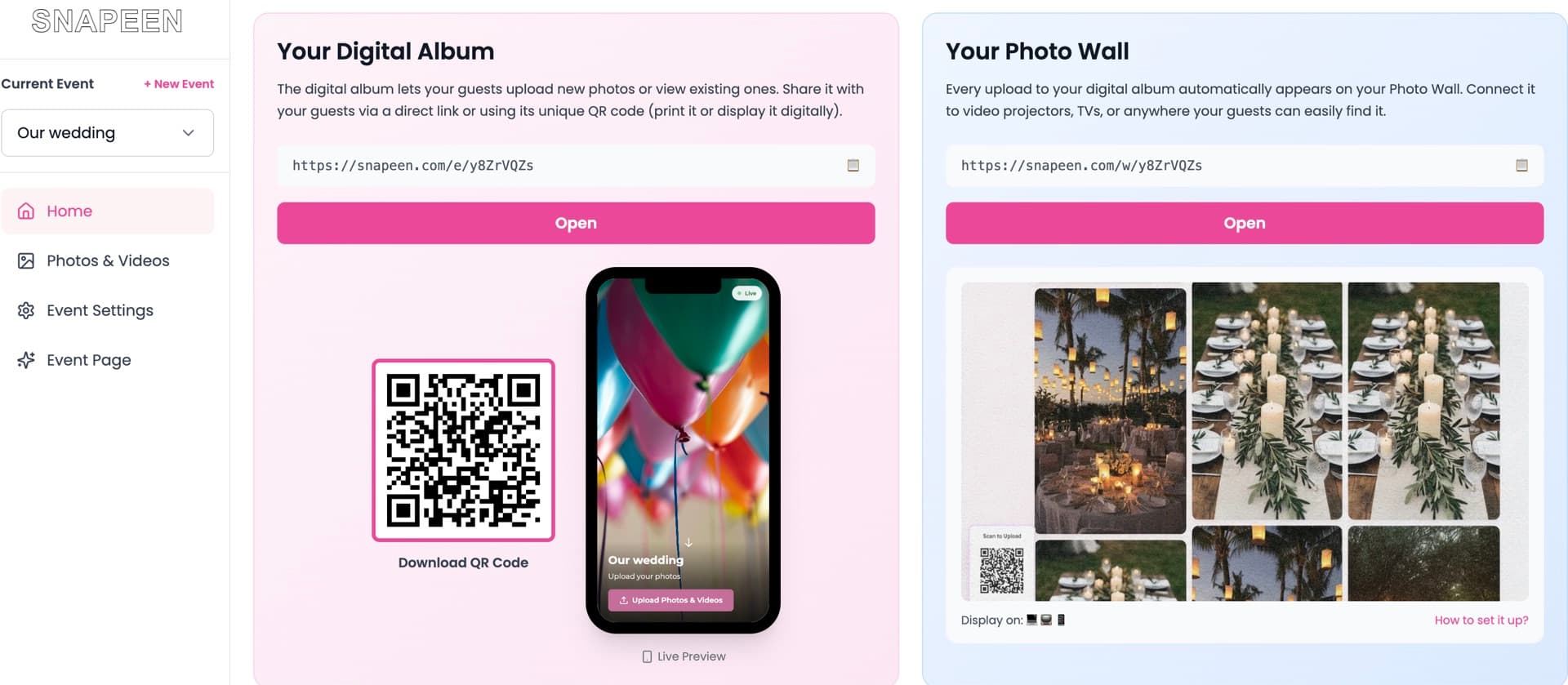
Snapeen Review 2026: Is It Worth It? (Honest Review)
An honest, in-depth Snapeen review for 2026 — what it does, what it costs, real guest participation data, the pros and cons we'd tell a friend, and whether it's the right pick for your wedding.